Resolving Chrome Browser "Blocked by an Extension" Permission Issue

Let's resolve the "Blocked by an extension" permission issue in Chrome browser.
TL;DR
All site permissions in Chrome were locked as "Blocked by an extension", and disabling extensions and resetting settings didn't fix it.
Cause: Corrupted settings in a specific profile
Solution: Rename problem profile folder → Restart Chrome → New profile auto-created → Restore via Google account sync
Symptom: All Permissions Suddenly Locked
I tried to join a video meeting on Google Meet using my default profile, but camera, microphone, and location permissions were all locked as "Blocked by an extension". Upon inspection, I discovered that camera, microphone, and location permissions for all sites were locked.
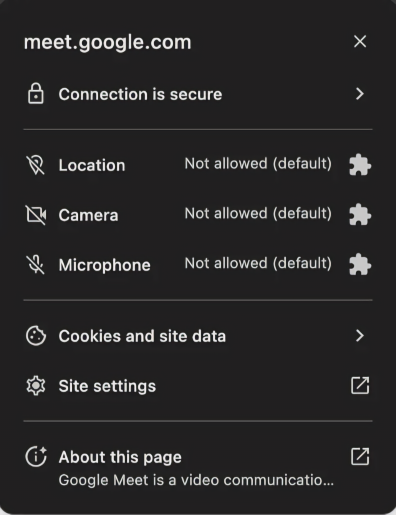
Looking at the site settings screen, location, camera, and microphone items were all grayed out and disabled, with a message "Blocked by an extension" displayed below each item. Even when clicking the dropdown, only "Block" was selectable, and I couldn't change it to "Allow".
I found that there were similar cases to mine.


Tracking the Cause
Step 1: Disable Extensions
Since it said "Blocked by an extension", I naturally assumed it was due to an extension. I started disabling extensions one by one, and eventually disabled all extensions.
However, even after restarting Chrome, the situation remained the same. The site permission screen still showed "Blocked by an extension".
Step 2: Reset Chrome Settings
Since disabling extensions didn't work, I judged that there was a problem with the settings themselves.
I clicked the "Reset permissions" button in site settings and deleted cookies and site data as well.
The problem still wasn't resolved, so I went to chrome://settings/reset and completely reset Chrome settings.
I completely closed and restarted Chrome, but the same problem still occurred on all sites.
Step 3: Check Other Profiles
At this point, I thought there was something fundamentally wrong. I tested by switching to another Chrome profile, and all permissions worked normally in that profile.
Now the scope of the problem narrowed. It wasn't a problem with the browser itself, but a problem occurring only in a specific profile.
Step 4: Look for Hidden Policies or Extensions
The fact that "Blocked by an extension" appeared even after disabling all extensions could be due to hidden policy-based extensions or organization management settings, according to posts I found.
I went to chrome://system and checked the Extensions section. Only Google's default extensions (Network Speech, Hangouts, etc.) were visible, and there were no suspicious items.
I also checked chrome://policy. Both Chrome Policies and Policy Precedence showed "No policies set". There were no policies distributed by any organization or company.
Profile Corruption?
No extensions, no policies, settings reset, but still not fixed. Other profiles are fine.
I concluded that the profile's settings file itself was corrupted, causing content settings values to be abnormally fixed.
Solution: Reset Profile Folder
Since Chrome returns to its initial installation state, if you have extensions, bookmarks, or saved passwords, back them up through Google account login, etc.
I followed the solution posted in Google Chrome Help Community for a similar problem.1
Step 1: Navigate to Profile Path
I entered chrome://version in the address bar. There was a Profile Path item about halfway down the page.2
/Users/[Username]/Library/Application Support/Google/Chrome/Default
This confirmed that the currently used profile was the Default folder.
Mac
On macOS, the ~/Library folder is hidden and not immediately visible in Finder. There are various ways to access it, but I used Terminal.
Windows
Press Win + R to open the Run dialog, access %localappdata%, then find Google\Chrome\User Data.
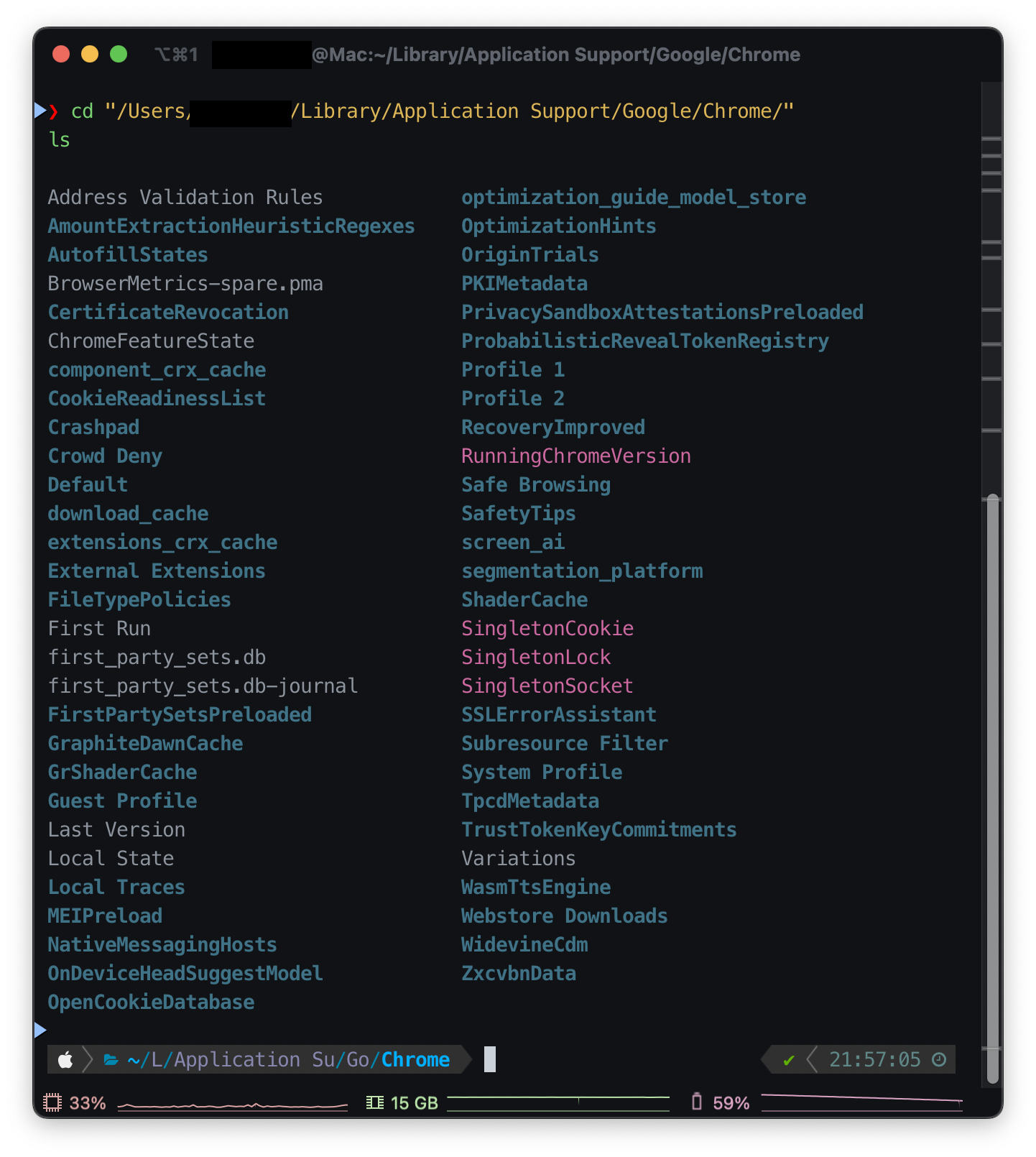
Profile folders likeDefault, Profile 1, Profile 2 were visible.
Step 2: Rename Problem Profile Folder
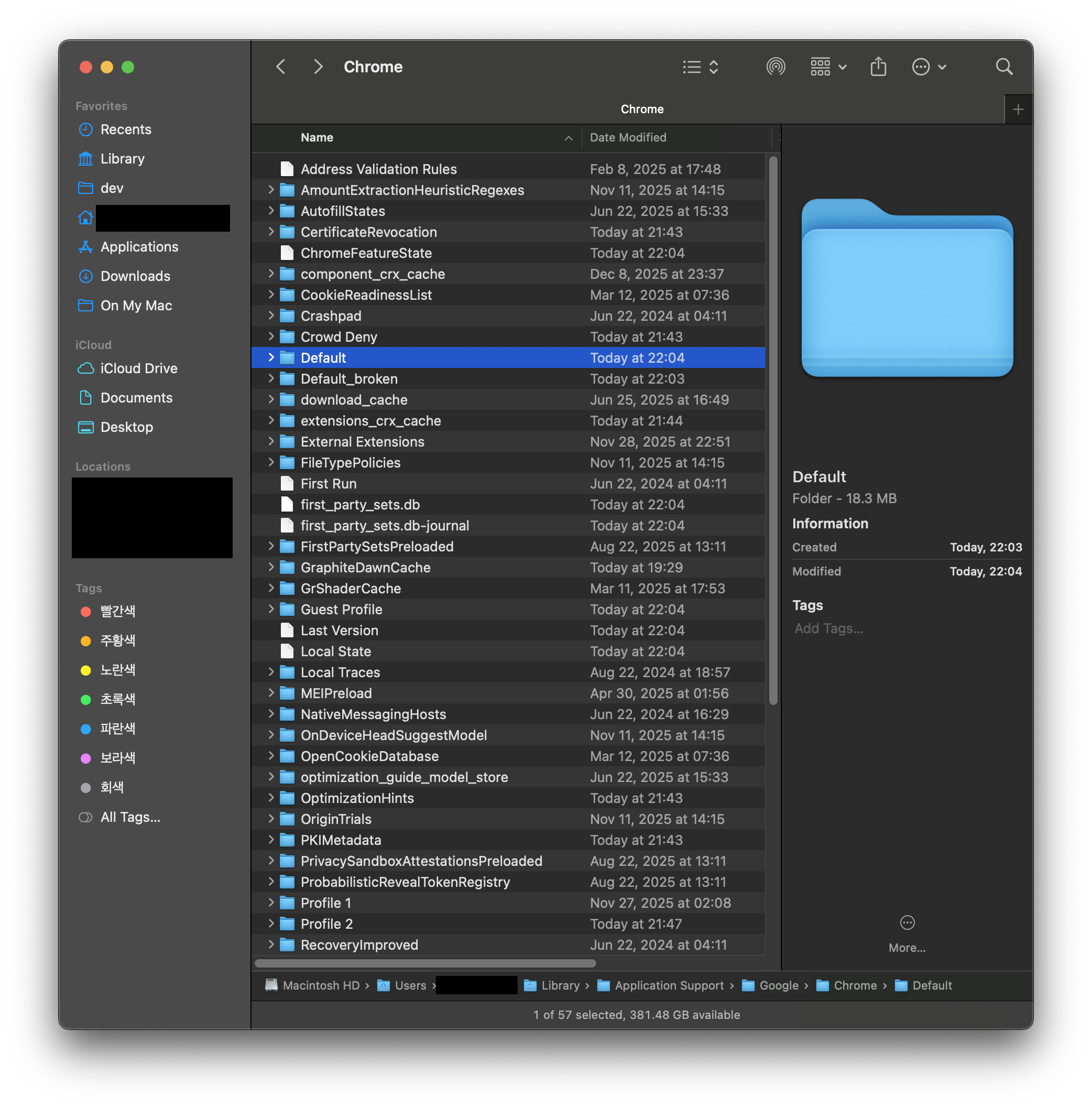
After completely closing Chrome, I renamed the problematic Default folder.
mv Default Default_broken
This way, Chrome won't find the Default folder on next launch and will automatically create a new profile.
Step 3: Restart Chrome and Verify
I restarted Chrome, a new Default profile was created, and I accessed Google Meet to check site permissions.
Finally, "Blocked by an extension" disappeared, and I could freely choose "Allow" or "Block" for location, camera, and microphone.
Step 4: Restore Previous Environment
The new profile was in a clean state with no bookmarks, passwords, or extensions. However, after logging in with my Google account and enabling sync, everything was automatically restored.
In chrome://settings/syncSetup, I included the "Extensions" item in sync, and the extensions I used before were reinstalled one by one.
Conclusion
If you get a "Blocked by an extension" error but there are actually no extensions or policies, you should suspect profile corruption.
Especially if all of the following conditions are met, profile reset is the answer:
- "Blocked by an extension" still appears even after disabling all extensions
- No organization policies in chrome://policy
- Normal operation in other Chrome profiles
- Problem not resolved even after Chrome settings reset and restart
Just rename the profile folder and a new profile will be automatically created, and you can easily restore your environment with Google account sync. After two hours of troubleshooting, it was a problem solved in 5 minutes.
✅ Today's troubleshooting complete!